21.08.2017 - Large update
New features
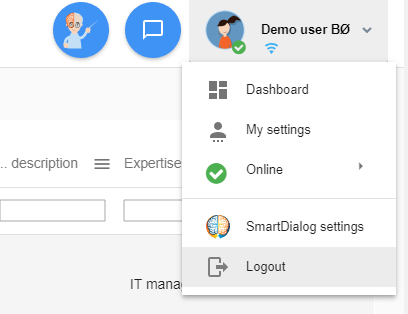
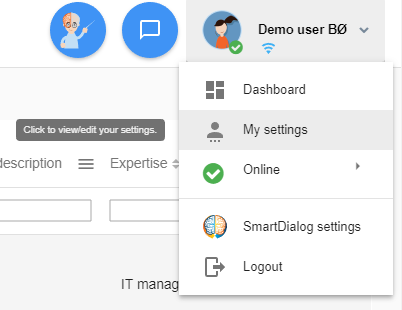
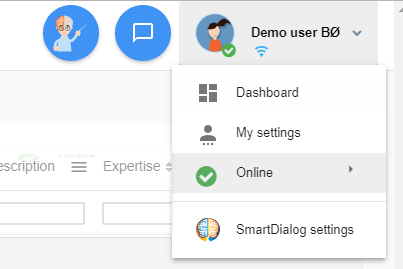 Hover your mouse over the status option, in this picture it says Online. If you are Busy it will say Busy
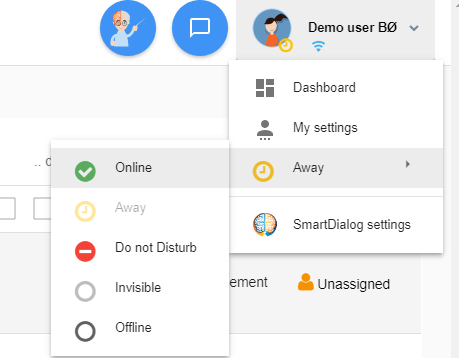
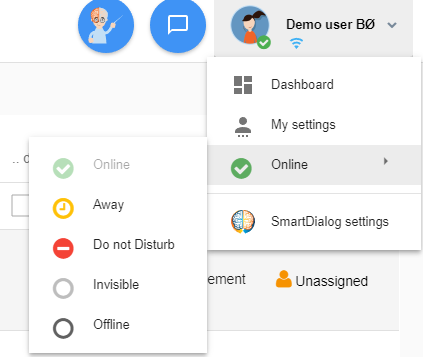 Grey option means that is the currently selected status. Click a new status to set your presence
After selecting the new status. The menu will close and the new presence will be set.
Grey option means that is the currently selected status. Click a new status to set your presence
After selecting the new status. The menu will close and the new presence will be set.
5. Filter by date in ticket overview.
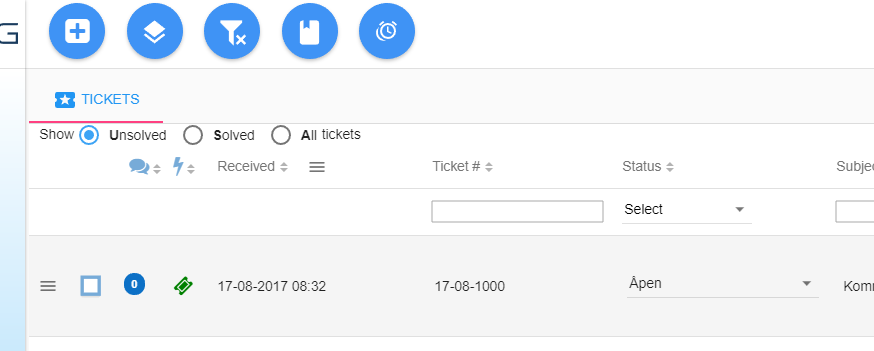
It is now possible to filter your ticket overview by a date range.


Click the menu icon for the Received column (marked in yellow)


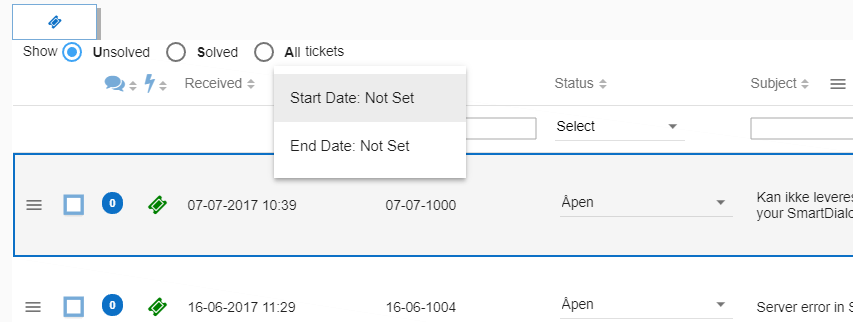
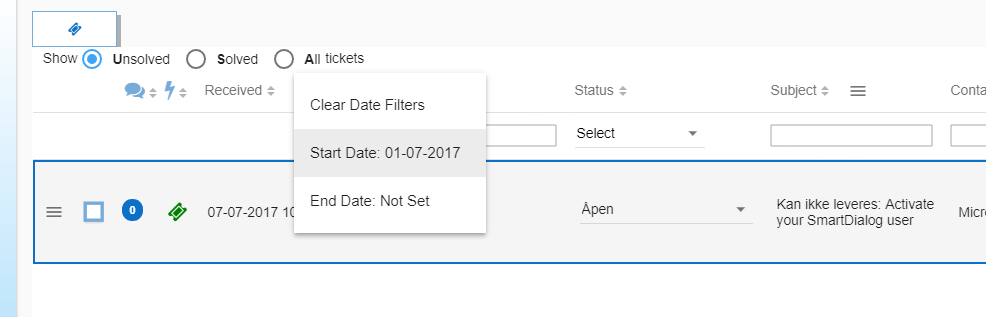
If you wish to only see tickets registered within an specific time frame, click Start Date and then End Date to set the date range.


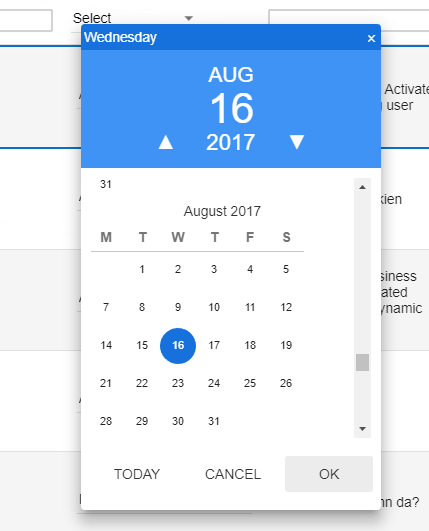
When you click Start Date or End Date a new dialogue will appear, find the date you want and double click the day or select the day and click OK.


The ticketoverview will update itself right away. As in this screenshot it only displays tickets registered from 01 July 2017.
6. Change expertise of ticket from ticket overview.
It is now possible to change the expertise of an ticket directly from the ticket overview.


Click the expertise field for the ticket row you wish to change


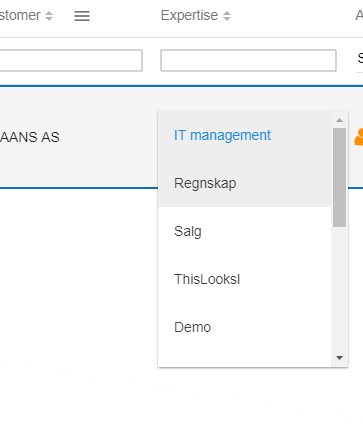
Select and click the expertise you wish to change to

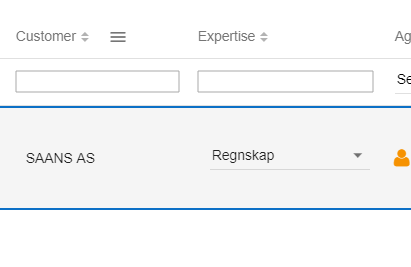
The changes is saved to the ticket instantly
7. Added feature to manage tickets files directly from ticket overview.

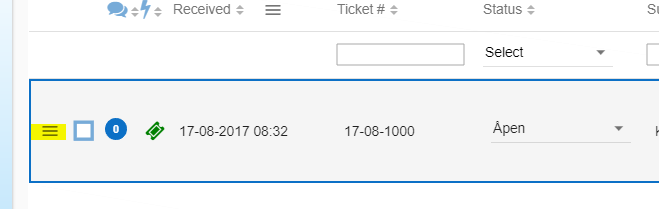
Click the menu icon for the ticket you wish to manage files.


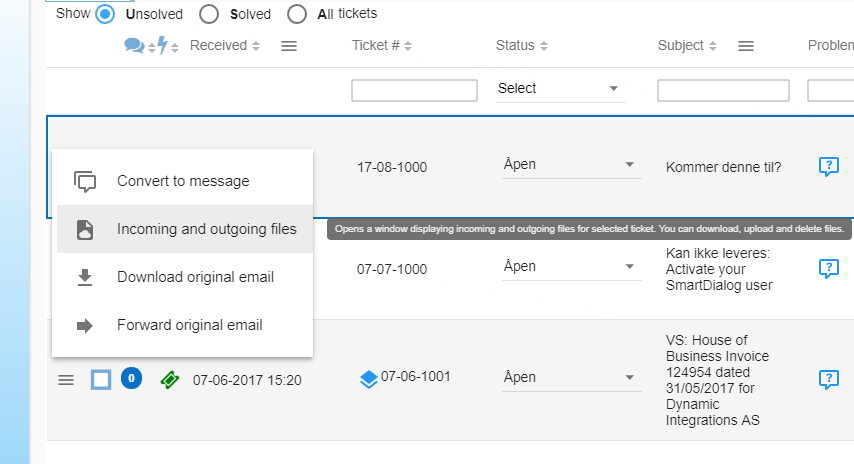
Next click the incoming and outgoing files option in the menu.


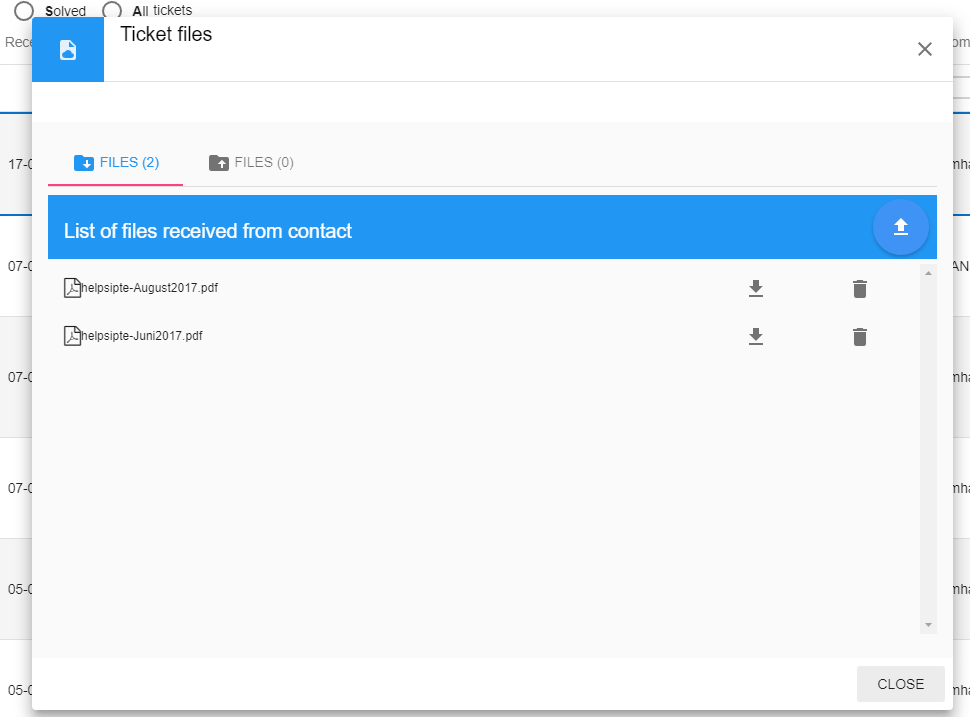
A new window opens containing the same file management panel found in a ticket window.
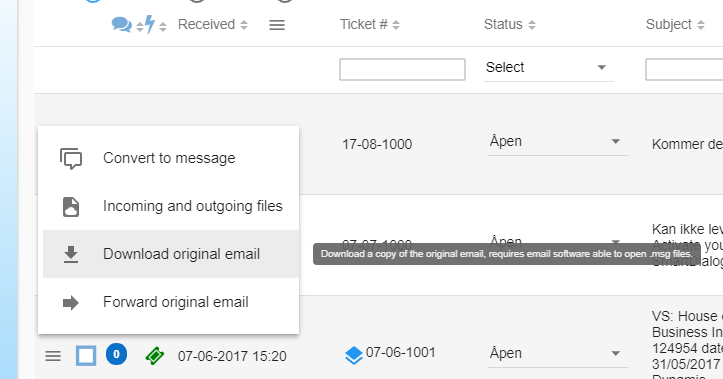
8. It is now possible to download or forward a copy of the original ticket email directly from ticket overview.
Click the menu icon for the ticket you wish to manage files.


Click Download or Forward original email. It will then either download an email file to your computer or if you selected forward an new message window will open.
Changes
1. User menu has been replaced with a menu that is more informative.
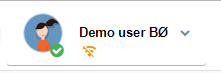
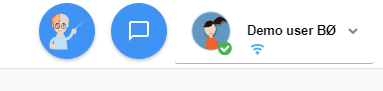
Menu now shows the logged on agents name, presence and a status bar.


The status bar is underneath the agents name, it shows important statuses for SmartDialog.
The icon visible in the picture  shows that the logged on agents session is connected to the server and is working properly.
2. Progress circle in ticket overview.
A large progress indicator will display when loading ticket overview
3. Made changes to the search routine and stacking.
Now when you are searching the ticket overview in expertise, status field or received date the stacks will be grouped. Searching in any of the other fields will collapse the stack groups and display all tickets regardless of being members of an stack or not.
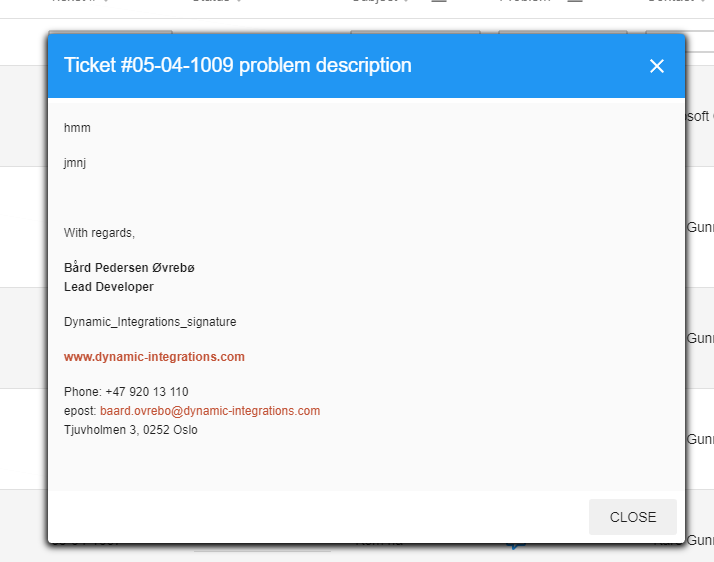
4. Replaced problem viewer in ticket overview with an method that doesn't affect the speed of the ticket overview.
You now have to click the question mark in order to read the problem description.


Once clicked a new window will appear. Click outside the window, close or the X to close it.
5. We have made changes to the ticket message recipient.

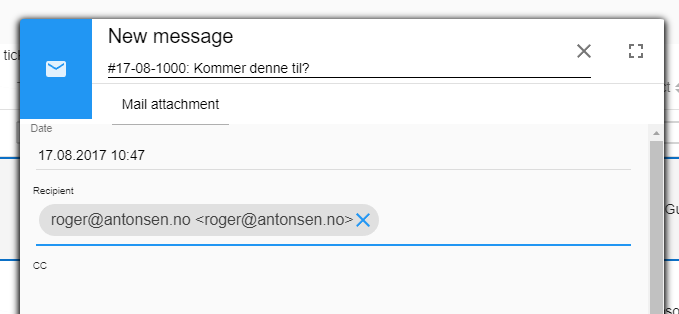
You are now able to add others as main recipients, you can also remove the default which is the tickets contact person.

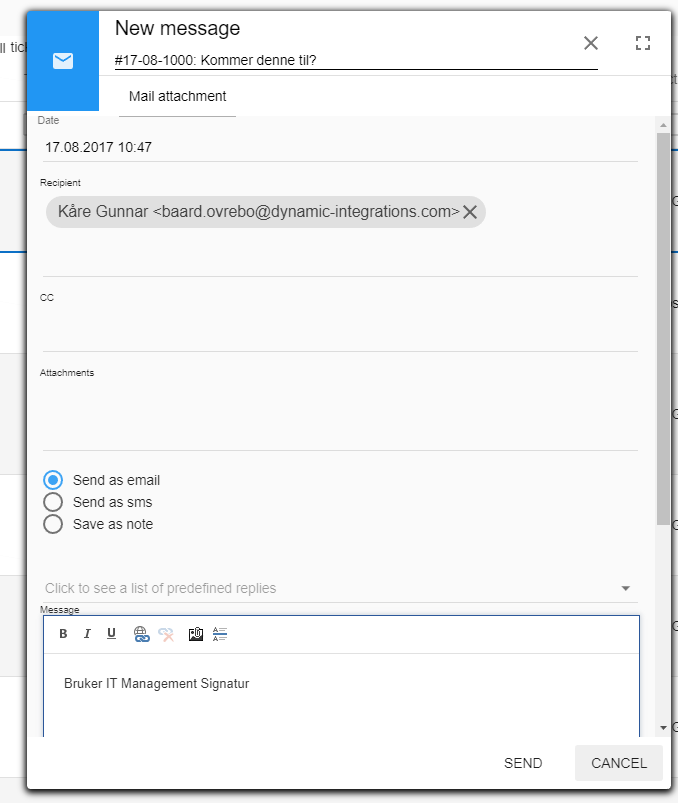
Create a new ticket message either through the ticket overview or from inside a ticket.

If you click the X behind the email address in Recipient it will be removed.

Click right above the line in Recipient and start typing an name or email address, it will search through existing customer contacts.
If you are sending an email to someone not in the customer contacts, you can type an email address and push the enter key.

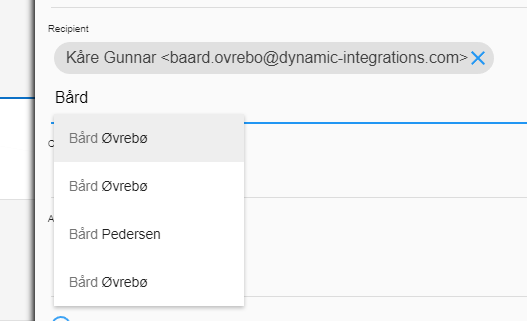
Adding an email that is not in the customer contacts database will display similar to this
6. Time management has been disabled/removed.
Due to unstable recording of time we had to remove this feature so we can dedicate resources to create something far better.
7. Replaced the old tabulator view in SmartDialog main page with md-tabs.

This was done to improve performance and the graphical experience.

The old look


The new look
8. Replaced NgRoute with UIRouter
To improve support for future features we decided to remove NgRouting and replace it with UI Router. This will have no impact for your daily use.
Fixes
1. Saving changes to an agent results in an required error in access level. It would not go away unless you changed to another access level and changed back.
This is now fixed.
2. When making changes to a ticket an red disk icon appears to signal unsaved changes. This could be confusing for users thinking it's a save button.
This has been changed to an red exclamation
3. We have made changes to how ticket overview retrieves data from the database. This to improve the speed of searching through tickets.
4. Fixed an issue where forwarded original email would not work if it contained an image in the signature.
5. Fixed an issue where adding an recipient and removing it again would not really remove the recipient.
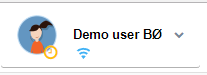 Disconnected
 Next, locate the switch named Skype Business presence and turn it on like in this picture
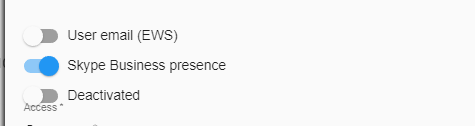 Click save to save the changes. You now have to reload SmartDialog by pushing the F5 button on the keyboard.
If you are not already logged in on your Office 365 solution.
You will be redirected to the portal.microsoftonline.com page to enter your Office 365 / Skype 4 Business credentials.
After a successful login you will be sent back to SmartDialog. SmartDialog will reload itself and start connecting to Skype 4 Business.
After a little while everything should be functional.
Changing your presence in SmartDialog will now also change your status in Skype 4 Business.
It's an two ways communication, so changing your presence in Skype 4 Business will also change it in your SmartDialog session.
Click save to save the changes. You now have to reload SmartDialog by pushing the F5 button on the keyboard.
If you are not already logged in on your Office 365 solution.
You will be redirected to the portal.microsoftonline.com page to enter your Office 365 / Skype 4 Business credentials.
After a successful login you will be sent back to SmartDialog. SmartDialog will reload itself and start connecting to Skype 4 Business.
After a little while everything should be functional.
Changing your presence in SmartDialog will now also change your status in Skype 4 Business.
It's an two ways communication, so changing your presence in Skype 4 Business will also change it in your SmartDialog session.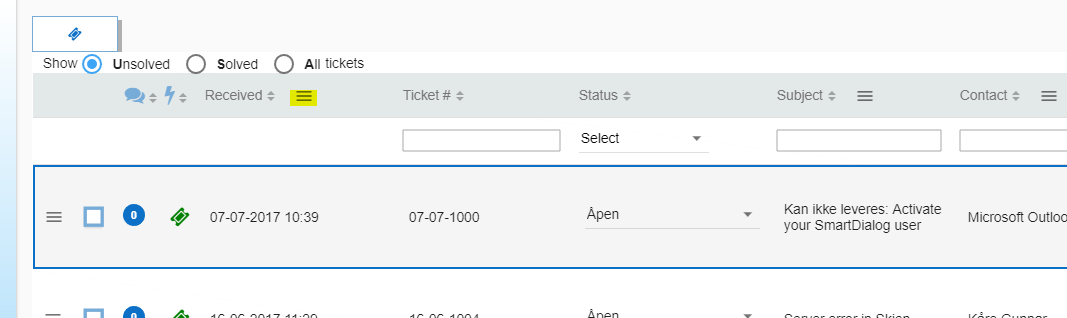 If you wish to only see tickets registered within an specific time frame, click Start Date and then End Date to set the date range.
 When you click Start Date or End Date a new dialogue will appear, find the date you want and double click the day or select the day and click OK.
 The ticketoverview will update itself right away. As in this screenshot it only displays tickets registered from 01 July 2017.
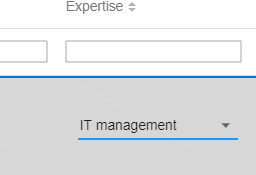 Select and click the expertise you wish to change to
 The changes is saved to the ticket instantly
 Next click the incoming and outgoing files option in the menu.
 A new window opens containing the same file management panel found in a ticket window.
 The status bar is underneath the agents name, it shows important statuses for SmartDialog.
The icon visible in the picture
The status bar is underneath the agents name, it shows important statuses for SmartDialog.
The icon visible in the picture  shows that the logged on agents session is connected to the server and is working properly.
 Once clicked a new window will appear. Click outside the window, close or the X to close it.
 Click right above the line in Recipient and start typing an name or email address, it will search through existing customer contacts.
If you are sending an email to someone not in the customer contacts, you can type an email address and push the enter key.
Click right above the line in Recipient and start typing an name or email address, it will search through existing customer contacts.
If you are sending an email to someone not in the customer contacts, you can type an email address and push the enter key.
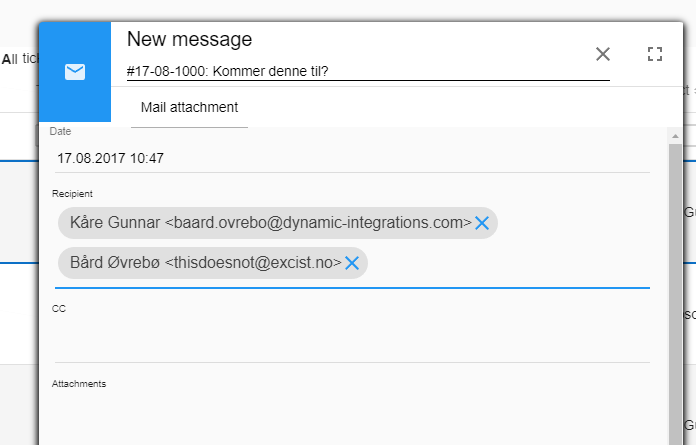 Adding an email that is not in the customer contacts database will display similar to this
 The new look