Agent interface (overview)
Welcome to SmartDialog Agent interface. This is where the magic happens!
The interface consists of 3 main sections:
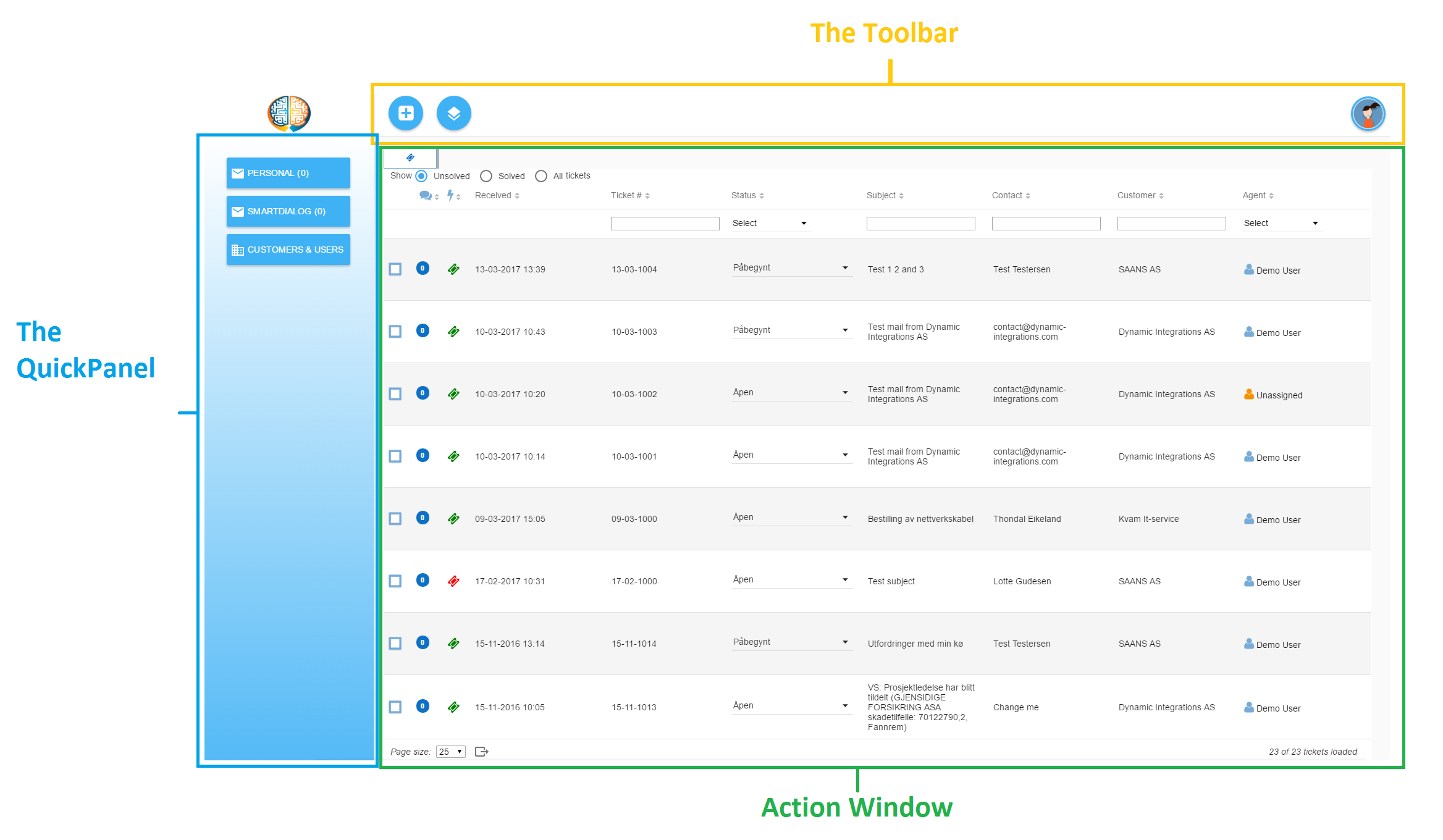
Quick panel
The navigation bar contains navigation icons which may change the content of the action window. By standard this show the "personal mail", "SmartDialog mail" and the "customers&contacts" buttons.
(Depending on what modules you may have, the quick panel may or may not contain more icons than represented in this image. )
Toolbar
The toolbar runs along the top of the interface. The content of the toolbar will change according to the content of the action window, and depending on what features you have active on your SmartDialog solution. At the top right corner you will find your user icon where you can change settings, presence & status etc.
- SuperUser can edit the layout of the toolbar, and add modules or features which gives additional tools for agents to use.
Action window
The action window is where you will be using most of your time. When opening SmartDialog, this will contain a list of unresolved tickets. The pagination is set as default to 25 tickets per page, but this can be changed if you want to view more at the same time.
- You can change your main filter or add new filter by going into user settings and change your filters at any time.
- Updates on tickets happens in real time, and you can change several ticket settings right from this view.
- SuperUser can change the main filter for all agents or create templates for agents to use.