Dialogues
After ticket creation you may want to update the information, communicate with ticket requester or add additional information to your ticket. In this guide we will walk you through how to communicate with the ticket requester, add private and public notes to an existing ticket and how to add and remove attachment in the dialogue window.
Jump to a section to read more:
- Dialouge
- Notes and how to add them
- Replying to a ticket
- Attachments
Dialouge
You can at any time create a new message or note by clicking the new message button:

Notes and how to add them
Sometimes you want to add some extra information to your ticket, but you do not want it to be a part of the description. This is where the notes comes in.
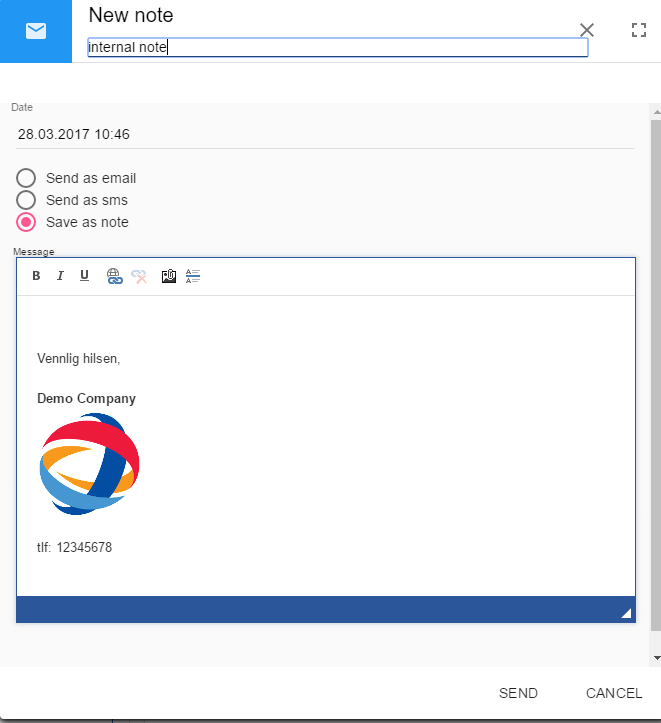
When you click the new message button, it is by default set to a new email. Click the "note" button.
When you add a note it is by default set to public, and these notes are visible to other agents & to the ticket requester. If you select the private button, the note comments can only be read by you and other agents.
You can format your notes the way you want to, add pictures or links, but you cannot add attachment in your notes. If you need additional files in your ticket you can add these in the ticket window instead.
Quick step by step to add notes
- Open the ticket you want to add the note to.
- Click on the + symbol within the "messages and notes" window.
- Select note to set the message to note type.
- Add files if you need to by clicking the "note attachment" button at the top. Choose the file
- Type out your thoughts and format the note to suit your current need. Add links and phone numbers, pictures.
- Click save
Replying to a ticket
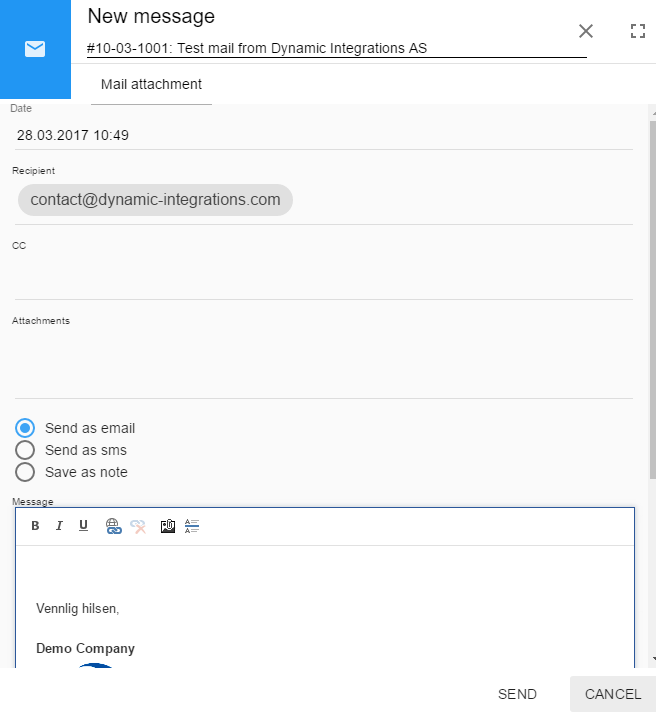
When you click the new message button, it is by default set to a new email. The message recipient is also by default locked to the contact on the ticket. You can offcourse add additional recipients by adding them to the CC field. In the
Quick step by step to ticket reply
- Click on the + symbol within the "messages and notes" window.
- Add additional recipients on the cc fields
- Type out your thoughts and format to your hearts desire.
- Add files if you need to by clicking the "mail attachment" button at the top. Choose the file.
- Read through it all to make sure everything is correct, and click "send"
Adding attachments
Allthough we covered quickly how to add attachment in each of the type of messages above, here is a quick description on adding attachment
- In the new message, click attachment at the top toolbar.
- Select "add attachment" and a dialouge window will appear.
- Select the file you wish to attach and click open and you will see the file name in the "attachments" field of the message.
- You can also find the files in the Ticket header, where all files you and the ticket requester have uploaded to the ticket will be visible.
