Updating tickets and solving them
While some cases are easy and have an easy question and an equally easy solution, many times you find yourself in a situation where there is need for further information. During a tickets lifetime the status can change multiple times. This guide is to help you select the proper ticket status and how to respond to ticket changes.
This guide will cover the following:
- Status basics
- Update and edit ticket status
- Solving your ticket
Before you start this guide, you should know you way around the agent interface, if not you can familiarize yourself with the agent interface
You should also know the basic of creating a ticket
Ticket status basics
Here are five standard statuses you can apply to a ticket(Status name and function can be changed from the SmartDialog settings):
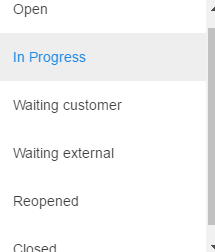
- Open: Indicates that this case is new and that no action has been taken on the ticket. Once a New ticket's status has been changed, it can never be set back to New.
- In Progress: Indicates the agent has started working on the ticket.
- Waiting Customer: indicates the agent is waiting for information or an action from the requester. If you have timer or SLA active, this setting will put those counters on hold.
- Waiting external: Indicates the agent is awaiting an update or action from from someone other than the requester. If you have timer or SLA active, this setting will put those counters on hold.
- Reopened: Indicates that the ticket has been closed, but has now recieved an updated from the requester within the avaialble timeframe.
- Closed: Indicates the agent has submitted a solution.
Update and edit ticket status
Sometimes you will recieve an update to a ticket per phone, per email or most likely via the ticket itself. Therefore we have given you several options to update the ticket status. Updating ticket status can be done from within the ticket itself, from the ticket quickbar and from the main ticket list. We will cover all three here. Depending on the selected status change you may recieve a prompt, i.e if your system is configured to create a reply to customer when setting "waiting customer", you will recieve a dialouge window that enables you to send a reply to the ticket requester for more information.
From the main ticket list:
When in the main view, you will see a dropdown arrow next to the each ticket's status. Clicking on this will bring up the available ticket statuses for your ticket. The benefits of having the status changes avaialble from the main ticket list will become are several. For example, it will allow you to change the status of a ticket should you have forgotten it, or if you recieve an update to the ticket from outside the ticket itself. This will save you from having to open the ticket and changing the status from within.
From the ticket Quick bar:
Just as from the main ticket list, you will from the ticket quickbar have a dropdown menu on each ticket. You can from within the ticket quickbar update statuses on other tickets withouth having to change the action window content, leaving you to focus more on the ticket you were allready working on.
From the ticket:
Lastly you can update the ticket status from the ticket window. Localize the status dropdown menu and change your ticket status.
Solving your ticket
When solving the ticket you can enter the solution. If you solve the ticket from outside the ticket window itself, you will recieve a prompt where you can fill in the solution. It will look something like this:
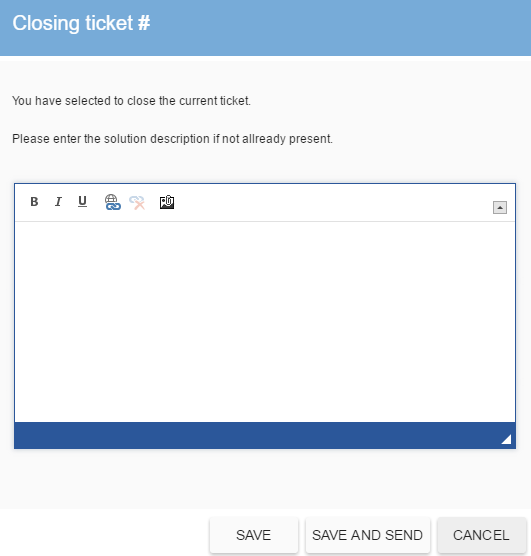
Depending on your company's policy, the ticket request will recieve a copy of the ticket solution. This setting can be disabled on a per company basis, per user, or disabled by default on all your customers via SmartDialog Settings.