Adding extra agents/users
SmartDialog comes with 2 user licenses, but in many cases this is not enough, you want the whole team to work together.
You can add a standard agent with an active license or perhaps you need to give the big bosses read only access to SmartDialog so they can have a full overview and collect reports to measure your SLA, etc.
Follow these steps to add additional support agents to SmartDialog:
- Log on to smartdialog as a superuser
- Select usermenu -> Smartdialog settings
- Select the "Users" tab
- Click "Add New"
- Fill inn details
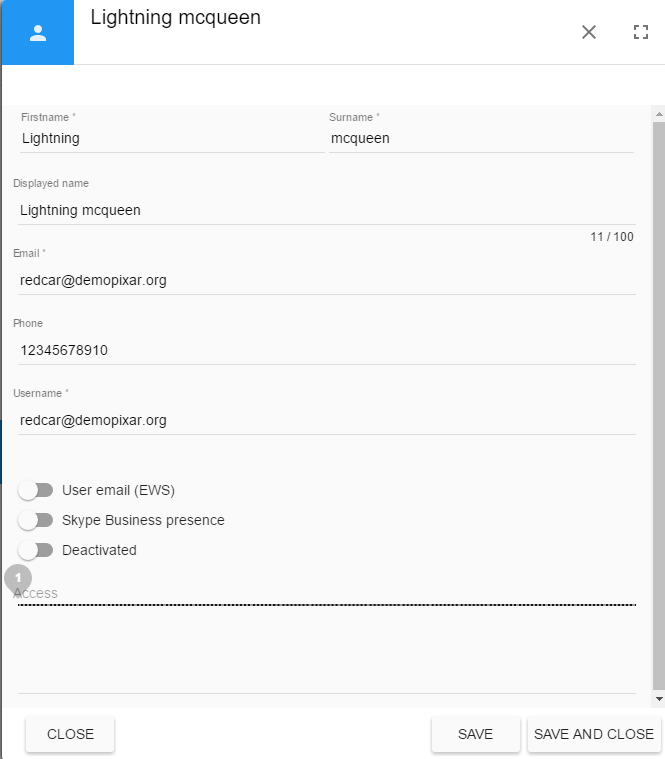
Most of the details are straightforward, but there are some additional selections which we will explain in detail here:
User email(EWS)
If you want to have your own email inside SmartDialog and in that way not having the need to have a local mail client installed, you can active this on the user. The benefits of this is that you can i.e convert emails directly from your personal inbox should any of your customers email you(the support agent) directly. Click enable and fill in your exchange email adress and password. (If your email is hosted on an onpremise exhange, ews must be enabled with external access allowed.)
Skype Business presence
Skype for business presence allows you to synchronize your Skype for Business presence with SmartDialog. This presence will be visible for other agents from within SmartDialog.
Deactivated
If this is on, the user is not active. If you are deactivating a user, then this is the button you are looking for.
Access/Permission level
To give you as much controll over SmartDialog and different parts of it, we have created several permission levels for you to select for the new user.
- Support Agent: Normal user. Most of your employees will have this access level.
- Support Agent Manager: Is able to Manage other users passwords, and they have access to the Dashboard.
- Administrator/SuperUser: Has access to all features in SmartDialog and can create new users.
- Read only: Read only user must be selected upon creating the user. Once the user has been saved with another permission level you cannot convert it to a read only user. Though if the user is already a read only user you can convert it to a paid user.
(Permission description is not final and may change over time)