In-depth ticket guide
If you are just looking for a quick explanation about how to create a new ticket, read here.
This is a more comprehensive and in-depth guide on tickets. This guide will also link to other guides on parts of the ticket system that is not directly affecting the main action window.
Ticket layout
Here you have an example ticket. The ticket is constructed so that you always have visible the important parts of the ticket.
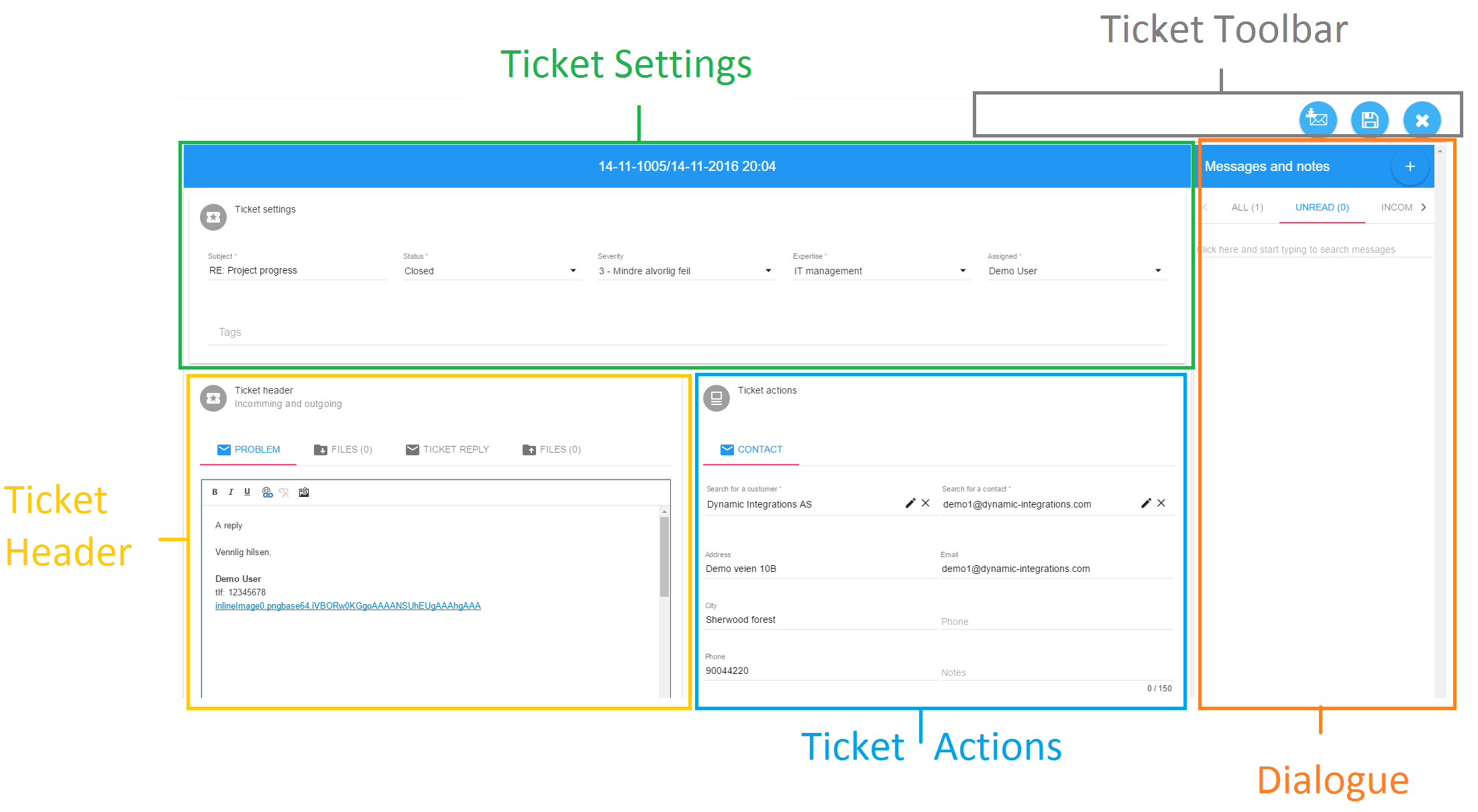
Let's break them down:
- Ticket settings
- Ticket header
- Ticket actions
- The toolbar
- Messages and notes
Ticket settings
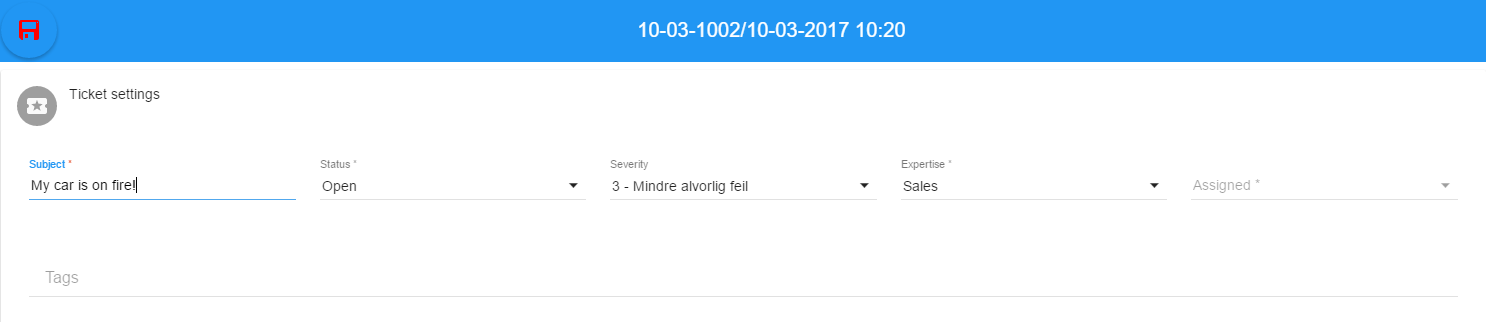
Every book has it's chapter, subheadings and paragraphs, and every ticket has a subject, status and tags. This is where you will find these details. Always visible at the top of the ticket, these are the settings you change the most. At the top you will also see if you have unsaved chnages, which will be indicated by a red save icon.
By default this part of the ticket will contain:
- Subject
- Status
- Severity
- Expertise
- Assigned
Subject
When creating the ticket, the subject will be prefilled with what the ticket requester has used as subject in their email too you. If you are creating the ticket by yourself, you can make up something related to the issue. You can at any time edit the ticket subject without it having any impact or effect on the ticket or the dialogue.
Status
Ticket status is what state your case is currently in. Are you awaiting a response from a third party vendor? Then this might say "awaiting external". Has a customer replied to a recently closed case? Then perhaps the ticket status is currently in "reopened".
More details on ticket status and updating tickets can be found in this article.
Severity
The severity is how serious the issue in the ticket is. Is a malfunction in the freezers in the local supermarket causing them to be hot instead of cold? That might call for a severity 1. Is the projector in the county church in need of a new lightbulb? Perhaps that's a severity 2. All this is up to you as the agent and your agent manager to set, and these severity names and effect can be edited to suit your needs.
Expertise
Expertise is your skills and support fields. In a hospital this might be: Surgery, GP, HR, Obstetrics. A carpenter might have expertise like: Furniture, kitchen, woodwork, billing, house-building and so on and so on. The expertise are set to a default set, but is most likely edited by your SuperUser/administrator to be something tailored to your field of work. You can read more on editing expertises in this article.
Assigned
Assigned will most often say your name on it, but you may find any of your co-workers on this field. You can also assign this to another agent should you see the need to do so.
Ticket Header
The ticket header is where the first communication starts, either where you read the problem description or write it down.
Although the tabs are made to be self-explanatory we will make a quick description for each here. This is a guide after all.
The ticket header consists of the following tabs:
- Problem
- Files
- Ticket reply
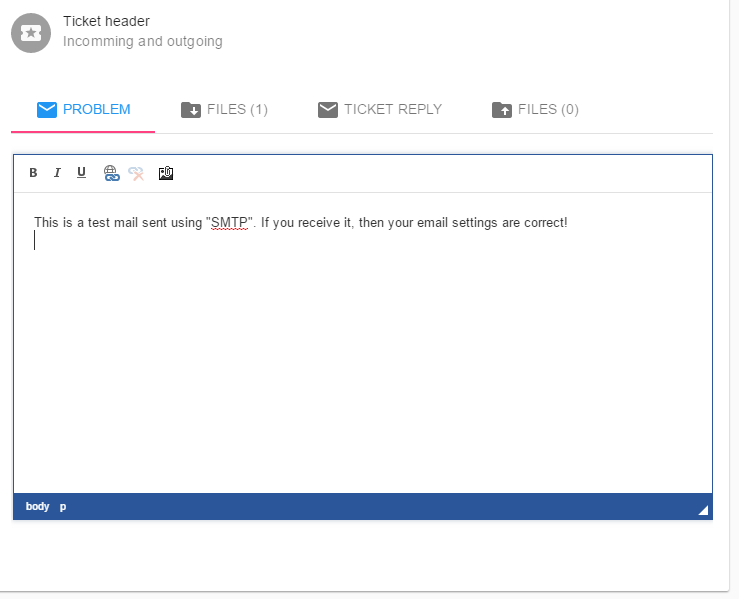
Problem
This is where you or the ticket requester describes the issue or problem. This might be a request, a lead or anything, but this is where the detailed version of the ticket is described.
Files (in and out)
There are two file tabs. One is to keep track of files you have received, and another is to keep track of the files you have sent to the ticket requester or anyone on cc.
Ticket reply
In the end you may want to describe the solution to the ticket requester. You can decide for yourself if you want this to be sent out to the ticket requester or keep the solution as an internal note, you may want to use the note section for that... but that is up to you off course.
Ticket Actions
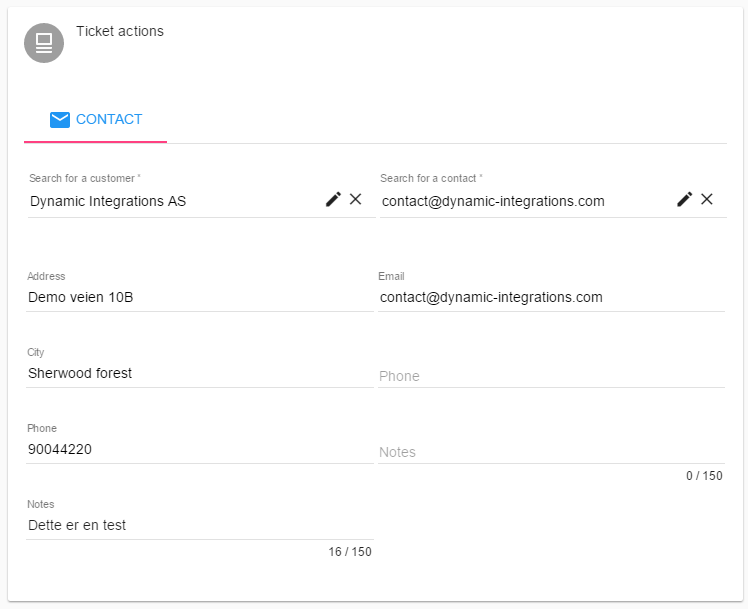
The ticket actions is mainly something you set when you first open or create the ticket. Information like, customer and the ticket requester. Depending on your SmartDialog modules, this part may include more settings for you.
The toolbar
The toolbar is a adaptive row of tools that changes depending on what view you are located. In the ticket view you will see tools only related to the ticket. Tools like, downloading the original e-mail message, saving the ticket changes and closing the ticket view.

Messages and notes
Messages and notes(also called dialogues) is your way of communicating with the ticket requester. Sometimes you want to send an email to the ticket requester, or you need to read one from them. Another time you want to add some extra information to your ticket, but you do not want it to be a part of the description, and that is where the notes comes in. All of this is covered in the more extensive dialogues article.