How to clear cache
There are many benefits of a web application, one of them though is a double edged sword. The cache. Sometimes when there is a new release of a web application, you need to log in and out and in some rare cases you need to clear the cache.
In most cases you will not need to clear the cache, or a simple key combination of CTRL+F5 will resolve the issue, but sometimes you need to take extra steps.
To clear the cache, follow these simple steps:
Chrome:
- On your browser toolbar, click More .
- Point to More tools, and then click Clear browsing data.
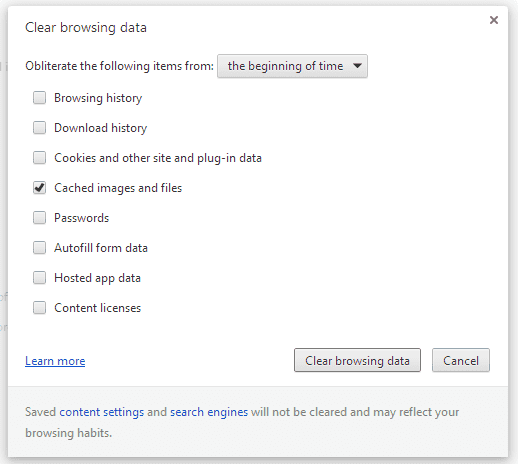
- In the "Clear browsing data" box, click the checkboxes for Cookies and other site and plug-in data and Cached images and files.
- Use the menu at the top to select the amount of data that you want to delete. Choose beginning of time to delete everything.
- Click Clear browsing data.
 .
.
Firefox:
- Click the menu buttonand choose Options.Preferences.
- Select the Advanced panel.
- Click on the Network tab.
- In the Cached Web Content section, click Clear Now.
- Close the about:preferences page. Any changes you've made will automatically be saved.
 and choose