06.04 2017 - Small update
New features
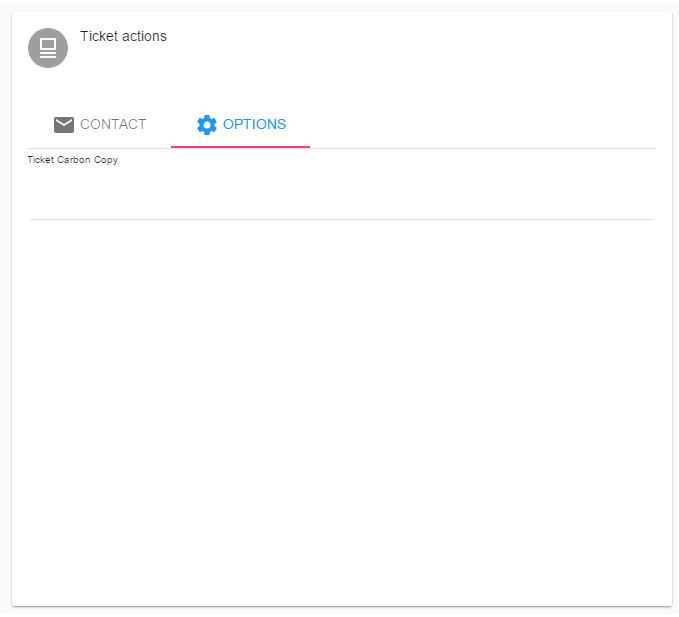 Click the "Ticket Carbon Copy" field and start typing in an email address or an existing contacts name.
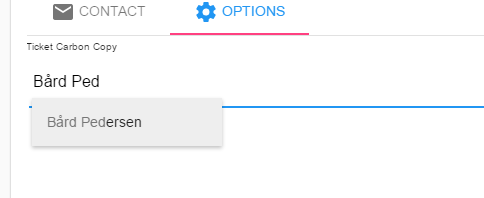 If you want to add a CC from a contact in the contacts database, search by typing the name and clicking the suggestion to select.
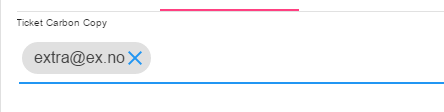 It will then convert the object to an email address.
If you want to add an email address that does not excist in the system, type the email address and push the enter button when done. This will convert the typed object to an email object.
Remmember to save the ticket after adding CC's.
It will then convert the object to an email address.
If you want to add an email address that does not excist in the system, type the email address and push the enter button when done. This will convert the typed object to an email object.
Remmember to save the ticket after adding CC's.
5. Create contact directly from ticket.
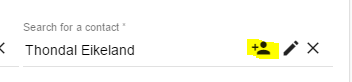
   It is now possible to create a contact directly from ticket by clicking the Person with a plus in the Contact search field.

After creating the contact you will need to search for the contact in the search field.
Fixes
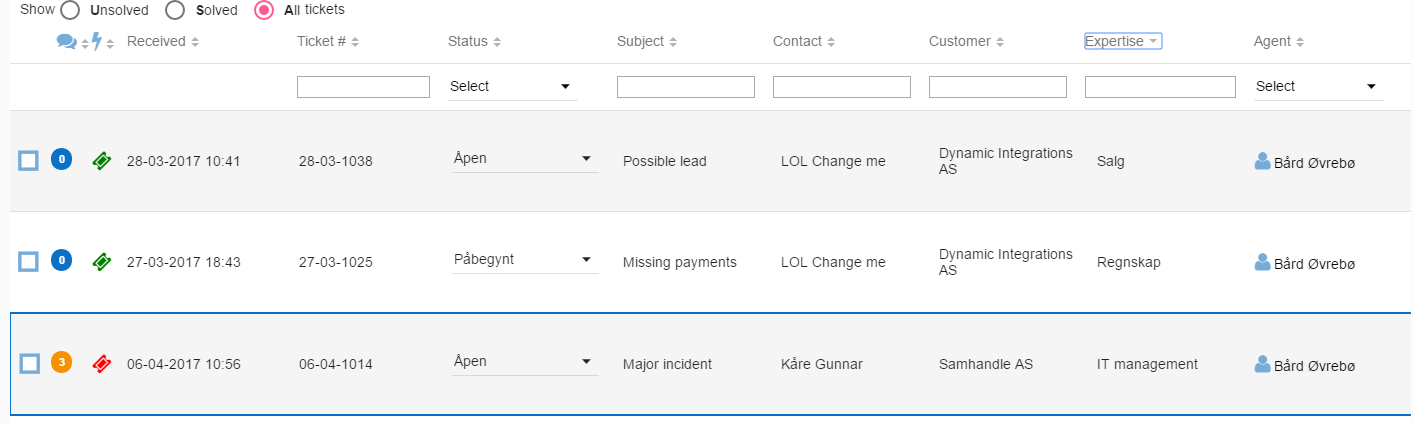
1. Tickets vanish from the table when returning from an open ticket.
2. When reading a message in a ticket it does not update the unread messages in the ticket table for the respective ticket.
3. When clicking reply on an message in a ticket you do not reply to the sender of the message but to the tickets contact.
 Click the expertise you wish to edit and enable the "Use as default expertise" setting. This will remove the default setting on other expexpertises that might have it enabled.
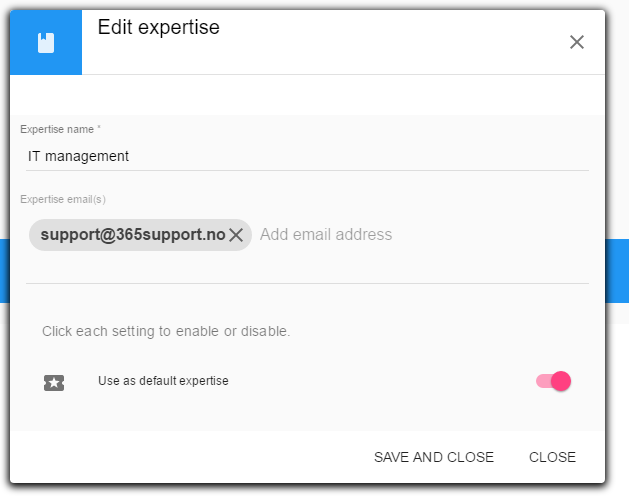 Click save and close.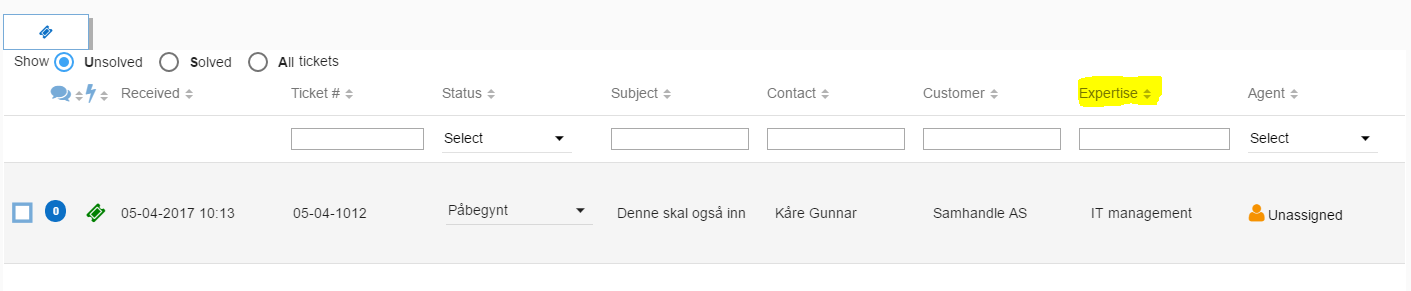
 After creating the contact you will need to search for the contact in the search field.